Lerobot integration
Imitation learning refers to the process of recording actions performed on a robot by remote control (teleoperation) and training a model to imitate those actions. Datasets contain video, sensors, proprioception, and recorded actions, and models learn to predict the actions from the observations.
Stringman supports imitation learning via the Lerobot framework.
Setup
In order for stringman to record episodes or make use of trained policies, the nf-robot package must be installed with the optional dev dependency. With your stringman virtualenv active, run
pip install --upgrade "nf-robot[host,dev]"
In order to eval (run) models, specific lerobot extras must be installed depending on the model being used. If using a DiT model such as naavox/dit-grasp-3
pip install lerobot[multi_task_dit]
Other model types may require other extra dependencies of Lerobot. If they are missing you will be prompted for them.
Additionally, you need an account on Huggingface (a repository for open source datasets) It is free, and your recorded data will be stored there, and will be visible to the public. You can make datasets private in your huggingface profile.
After making your account, run the following from the terminal where your virtualenv is active. It will prompt you for a token, when you must create one time in your huggingface account settings. Follow the instructions printed at the prompt
hf auth login
After this is complete, when you start stringman-headless in this enviroment, it will be possible to start recording and eval sessions using the web UI.
A session runs as a subprocess of stringman-headless and is cleaned up automatically.
Stringman does not start one automatically, but only at your request using the UI. It is only possible to record or evaluate policies while one is active.
Starting a recording session
Establish a connection to your robot and confirm basic functionality. Confirm all components are connected. Make some small movements with your gamepad to confirm it is responsive. Perform a quick cal to make sure the position estimate is not way off.
Running the recording session
The recording session runs as a seperate process. You have two ways to run it:

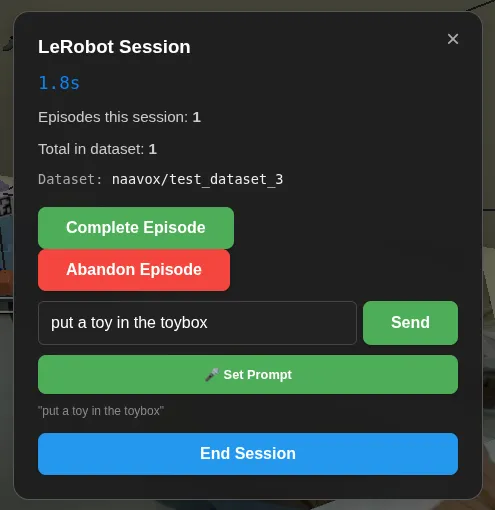
Click the Record button in the top bar. A panel will open. To record a dataset you must specify a repo id with the format huggingface_username/dataset_name You can choose any dataset name you like. If it is new, we will create it. If it exists and is the exact same format, we will append episodes to it.
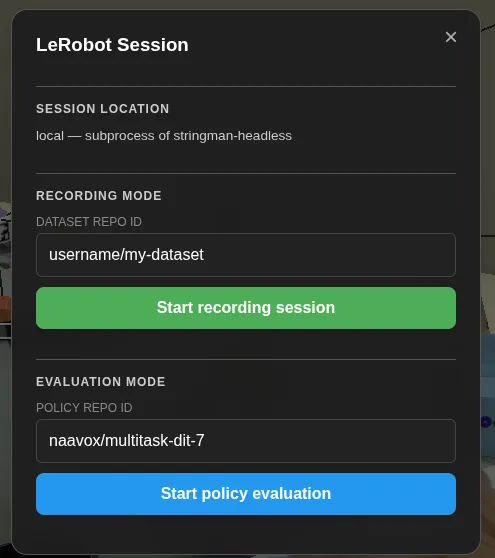
Click Start Recording Session and in a moment, you will hear 'ready' spoken by the browser. Auditory feedback is used to make it easier to record episodes while keeping your eyes on the robot.
You can also run a session from a remote machine with the nf-robot package installed, connecting to your robot over the network.
The robot must be bound to an account on neufangled.com using the "Bind" action in the run menu, and must be running with --telemetry_env=production because this works only with the telemetry relay at neufangled.com
You'll need your robot id and a remote stream token (ticket). The robot id can be obtained from the config file or the URL when viewing the control panel.
The stream ticket can be obtained in the run menu from Calibration and Maintenence -> Get Stream Ticket
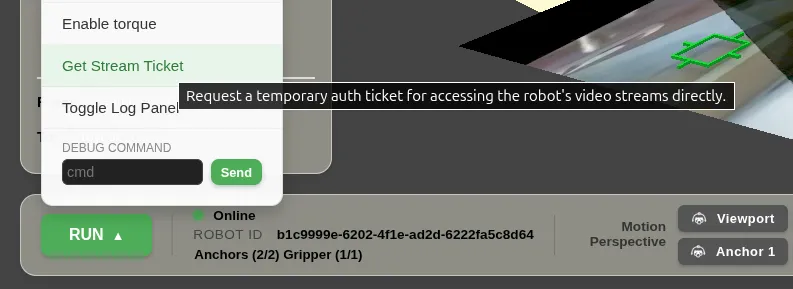
To record a dataset:
python -m nf_robot.ml.stringman_lerobot record \
  --robot_id=YOUR_ROBOT_ID \
  --server_address=wss://neufangled.com \
  --remote_stream_token=YOUR_STREAM_TICKET \
  --repo_id=naavox/grasping_dataset
To evaluate a trained policy, use eval and pass the policy's repo id with --policy_id:
python -m nf_robot.ml.stringman_lerobot eval \
  --robot_id=YOUR_ROBOT_ID \
  --server_address=wss://neufangled.com \
  --remote_stream_token=YOUR_STREAM_TICKET \
  --policy_id=naavox/grasping_act_policy
You can confirm there is a connected session in the UI when the Record button is replaced with Session Connected
Resource requirements
When running a local session it is important that you have enough CPU and ram headroom that recording doesn't slow below 30fps.
Either way the machine running the lerobot session needs signifigant resources. if you are running it on a medium to low end laptop, a remote session is the only practical option.
For recording, 16 cores or more are reccomended. If CPU use reaches 100%, the data will likely contain time distortion and will degrade the quality of the trained model.
For evaluation, it depends on the policy being evaluated. Generally a few cores will become occupied during eval, and you need something that can accelerate pytorch, such as an RTX 3090 or better. Some models, such as Pi0.5 are huge and require much more vram and system ram.
Considering the dataset scope
For the best results from immitation learning you should keep your motions deliberate and clean. Whatever you record, the policy learns to immitate.
Record with Swing Cancellation
It is reccomended to always record data with swing cancellation turned on. (swing cancellation can be toggled with the switch in the UI or by clicking the left stick). Likewise run your eval with it turned on as well.
Keep episodes short and focused on the task. A typical episode would be to start over an object, grasp it, and lift it off the ground.
- Turn on every light you have in the room. Better lighting almost always gives better results
- Start by grasping a single object and doing the same thing with it each time. 50 episodes will be sufficient for an ACT model as long as there is no extra variety in the data.
- Introduce additional variety one degree at a time. for example. Starting with the fingers both open and closed. starting with the object in different orientations, or adding different colors of objects. the more variety, the more data you should collect.
Driving from the seat tag perspective
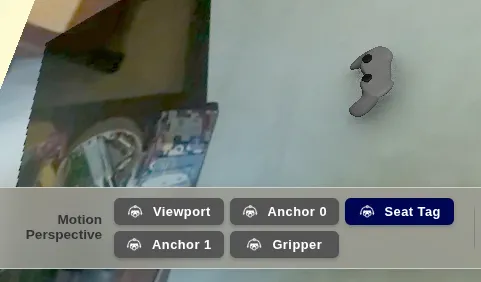
The best data is recorded while in the room with the robot and driving from the seat tag perspective. To do this, after booting up, briefly hold the gamepad tag over your head where one of the cameras can see it. The hide it by sitting on it for example. You will see it reflected in the UI when the gray gamepad moves roughly to the position in the room where you're sitting.
Select the "Seat Tag" button from the available motion perspectives at the bottom of the UI. Now forward and back will move further/closer to you, and left/right orbit you.
Recording your first episode.
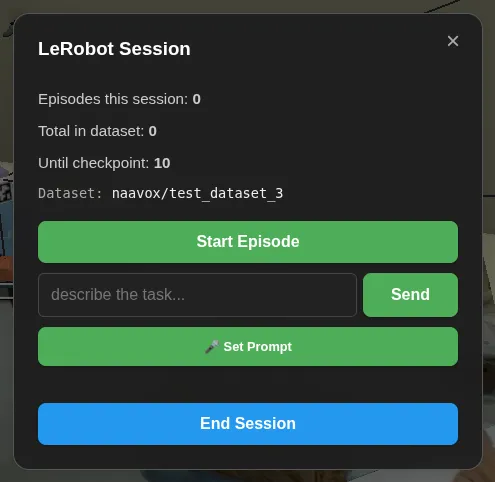
Press Start on the gamepad or the start episode button in the lerobot panel.
move the robot to perform a simple task, then press start again to end the episode. Auditory feedback lets you know you've ended the episode and how many you've recorded this session, Just after ending an episode, a few seconds of additional processing is necessary for ffmpeg to catch up and finish writing the video file. When this is complete, you will hear "ready" and the lerobot button's icon will change from an array of dots, to an open circle. Now you can start the next episode.
Ready signal
Don't start the next episode until you hear "ready"
You can discard an episode during recording and it will be ended and not included in the dataset. Press select on the gamepad to discard an episode, or press the stop button in the UI.
Setting a prompt
To set the prompt (used for any episode recorded until you change it) you can use one of several methods
- Type the prompt in the recording session dialog and press send
- press the mic button in the recording session dialog and speak a prompt.
- Press
Xon the gamepad and speak a prompt.
When activating the mic for the first time, your browser will ask for permission.
Ending the recording
To save the episodes and upload to huggingface, click the button to bring up the Lerobot Session dialog. Click End Session. The session will process any remaining data and upload to huggingface.
There is a dataset viewer where you can review the recorded episodes.
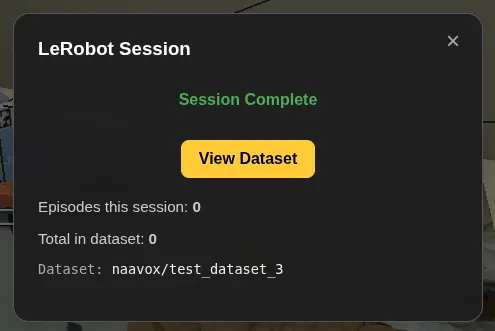
If the upload fails, the data is still safe in the datasets/ folder where you are running stringman-headless. If you later append episodes to the same dataset, the whole thing will be uploaded to huggingface again.
If you stop stringman-headless with ctrl-c while a session is running as a subprocess it will attempt to finalize and upload the dataset.
Neufangled "Move clutter" dataset standards
For datasets which are intended to be merged with the "Move clutter" dataset contractors or volunteers should follow these standards
- Use the newest version of nf_robot on both the host and components, and a good calibration
- Record episodes with swing cancellation on.
- Have at least one of a trashcan, laundry hamper, or toybox in the room, with the correct tags attached having their front face towards the opening of the container. (the front side has text)
- Always set one of the following prompts:
- Put laundry in the hamper
- Put a toy in the toybox
- Put trash in the trash can
- Put a ball in the ball pit
- Fix the over hanging item
A single episode of any of the the first four prompts should consist of finding an item from the relevant set, grasping it, picking it up securely (retrying if necessary) and dropping it in the correct container. It can start from anywhere in the room.
An episode of "fix the overhanging item" starts over a container and means getting an over-hanging item fully into the container.
Any episode with a glitch, lag spike, excessive stillness, missing/incorrect prompt, or bad behavior should be abandoned/discarded.
Troubleshooting
If any error occurs during recording, the session ends, but the recorded data is often salvagable since it's still present on your drive (wherever stringman-headless is running) and can still be uploaded with
If you see FileExistsError: [Errno 17] File exists: '/home/nhn/.cache/huggingface/lerobot/naavox/test-dataset' when trying to start a session, this means that the previous time you started a session with that repo id, it never got to the upload state and and the repo id was never registerd with huggingface, but just in case there is some valid data in there, it's refusing to overwrite the folder. If you know it's empty just delete it.
If the UI state is out of sync somehow and says there's a session where you know there is not, refresh the page.
Training
Locally
Train an ACT policy on a recorded Stringman dataset.
lerobot-train \
  --dataset.repo_id=<repo id of recorded data> \
  --policy.type=act \
  --output_dir=outputs/train/<unique name for this run> \
  --job_name=act_c \
  --policy.device=cuda \
  --wandb.enable=false \
  --policy.repo_id=<new repo id where you want the trained model uploaded> \
  --steps=100000 \
  --batch_size=200 \
  --save_freq=20000
To maximize the use of your hardware, you should set batch_size as high as possible without running out of VRAM
run nvtop to see a visual indicator of your GPU's vram utiliztion. If you see it below 90%, increase batch_size. if the training command exits with a memory error, decrease it.
100k steps will run overnight on an Nvidia 4090 or better. 50k is also acceptable. Though you almost certainly won't get better results by training longer than 100k. If results are poor, it's always the data quality.