Usage Guide
This guide covers installation of the headless server and the use of the web based control panel.
Installing and running the motion controller
The control panel alone does not run a Stringman robot. A program called the motion controller runs it. The motion controller must be run on a PC on the same network as the robot components. If the motion controller is not running, the anchors simply hold position and transmit nothing.
The brain of the robot is stringman-headless which is installed with pip. The components themselves are just light video streaming devices and motor command issuers. In other worfds, Stringman Pilot's compute is external.
The motion controller is a headless process, and the user interface is browser based and accessed at neufangled.com/control_panel whether in lan mode or cloud mode.
Installation
sudo apt install python3-pip python3-virtualenv
python3 -m virtualenv venv
source venv/bin/activate
pip3 install "nf_robot[host]"
Either download the bundled Stringman windows installer (4.3GB) or if your machine already has cuda and you want to save space, install stringman directly into a system python installation.
Installing Python via the Microsoft store is probably the easiest way to integrate it into your system without conflicting installations.
Type "Microsft Store" in the start menu.
Search for python
Install python 3.13
Open Powershell
cd ~
python3.13.exe -m pip install "nf_robot[host]"
python3 -m virtualenv venv
source venv/bin/activate
pip3 install "nf_robot[host]"
Run Stringman
Run stringman's motion controller from the virtualenv you set up during install
venv/bin/stringman-headless
python3.11.exe -m nf_robot.host.observer
venv/bin/stringman-headless
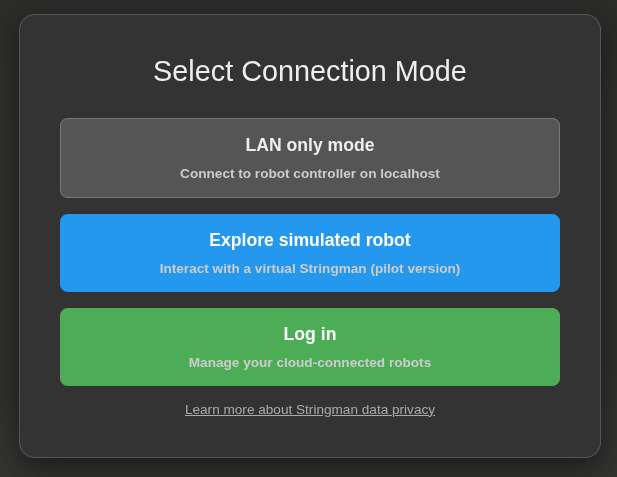
With no args, it runs in LAN mode, meaning it will listen for a UI connection on port 4245. Open the Control Panel and select LAN mode to connect to the stringman-headless process your local machine.
If no configuration file is specified with --config=<filename.json> one will be created at configuration.json this will be where your specific robot's calibration parameters are stored and where your randomly generated robot id will be stored. if it is deleted, the id will change.
For machines with no NPU or GPU capable of AI acceleration, run with --no_ai. This will cut down the resource usage enough that you can still drive manually but you will be unable to use autonomous behaviors.
Connecting
Whether starting the motion controller first, or powering on the robot components first, the motion controller should discover and connect to every component automatically.
After making the initial connection to a component, the motion controller will attempt to connect to the video stream as well. The status of all component connections is indicated in the bottom left. It is possible that a component may be connected, but it's video connection is only established a few seconds later. This is normal.

If some components don't connect, please refer to the Troubleshooting page. Or ask for help on our Discord.
First movment
The first thing you need to do after hanging up stringman and connecting to it, is raise it off the floor.
First tension all lines. In the RUN menu, select Tension all lines or press 1

Then briefly tap the E key to move upwards. Briefly hold it enough to raise the gripper to a unobtrusive height.
Any complex motion beyond this requires calibration, which is the next step.
Calibration
Print out the full-page "origin" marker as well as calibration helper 1 thru 3 at 100% scale with no margins. Tape the pages to something completely flat such as a large book, a pane of glass, or an un-damaged peice of cardboard. Lay the origin marker in the center of the room, and place the helper markers around it as spread out as possible while still being visible to all the cameras. The origin card must be on the floor, the the others can be anywhere.

Select the Calibration and Maintenence submenu followed by Full Calibration

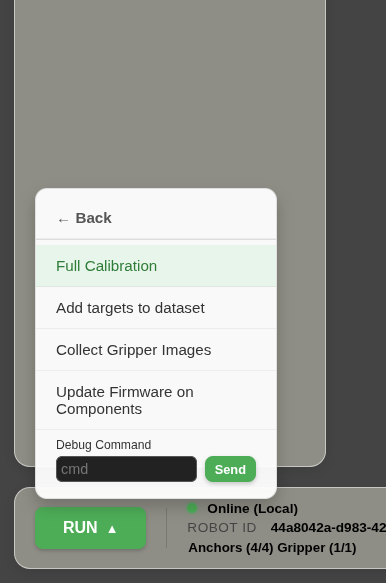
The robot should move to a position over the origin and make some other small motions. When this is finished, the shape of the room in the UI should update. If anything looks drastically wrong try repeating the calibration with better lighting, or with the helper cards in different places.
You should can judge the quality of the calibration by moving in straight lines. WASDQE keys move the robot along the cardinal directions of the origin card. With good calibration, the gantry should move in straight lines. Poor calibration usually causes it to move in an ascending arc, with some lines becoming slack in the process.
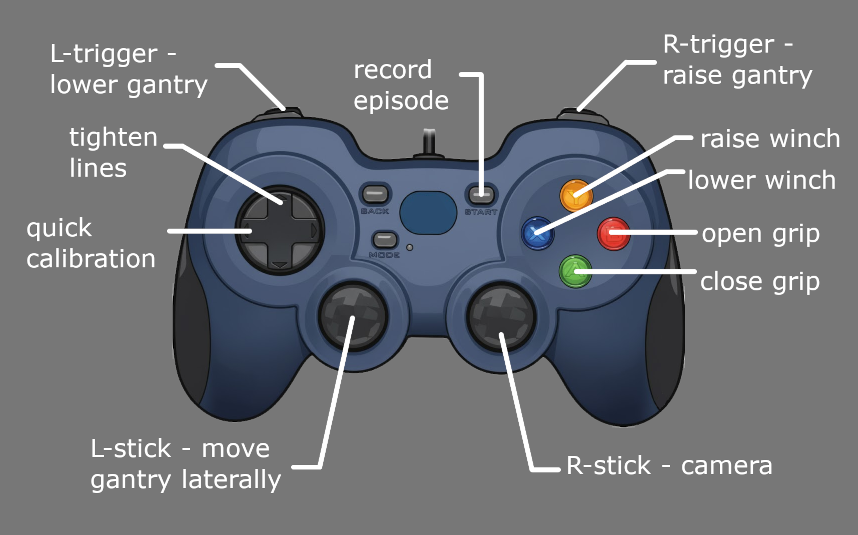
At any time, you can run the quick calibration (dpad-left) or key 2 which tightens all lines and resets the internal counter on the line length based on visual observation. Quick calibration only takes a few seconds. This can fix slightly slack lines, but cannot fix excessive errors in the position of anchors. In the pilot gripper, Quick calibration also attempts to reset the length of the winch line using the time between recent gantry swings. The gantry is almost always slightly swinging, but if it's not swinging at all, this part will not be updated.
Tip
Left D-pad on the gamepad or key 2 performs quick calibration. Doing this often is very beneficial.
If automatic calibration absolutely cannot determine the true position of the anchors in your room, you can edit them manually in configuration.json in the working directory where you ran stringman-headless. Units are in meters. The motion controller will not alter them unless you run full calibration again.
Controls
Keyboard
WASDto move laterally and QE to move vertically.ZXto rotate the wrist (arpeggio gripper) or winch motor (pilot gripper)Spaceto close the gripperL-Shiftto open the gripper1to tension all lines2perform quick calibration3execute an automated grasp at the current location
Gamepad
Any HID gamepad connected to your computer should be recognized by the control panel. Connect a gamepad and press any button to wake it, then press both left and right analog triggers at the same time. Gamepad control is highly reccommended over keyboard as it gives you analog speed control.
Warning
Doesn't work in Linux/Firefox but does work in Linux/Chrome https://hardwaretester.com/gamepad is really helpful in debugging this
Perspective
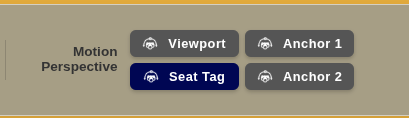
Whether in keyboard control or in gamepad control, you can select the viewpoint around which the robot orbits.
In any of these perspective but gripper, forward moves away from you without changing height, back moves towards you.
Left orbits you counterclockwise, right orbits you clockwise.
You can set the viewpoint to be any camera, the 3D viewport, or the seat tag, which is an Apriltag you can place anywhere in the room, such as near your seat.
In gripper persepctive, forward is always in the direction the gripper is facing, which is up in the gripper camera view.
Stop motion tasks
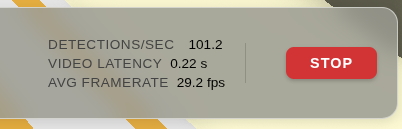
The STOP button can be pressed at any time to cause a soft stop. This means any task which is generating motion commands will be cancelled and all motors will be commanded to stop. After a soft stop the robot can continue to move again as soon as any task or control input is given.
Targets
The Targets panel shows all targets that can be seen from the overhead cameras, whether identified automatically or added manually. You can select any target by clicking on it in the list or on it's square in any camera view where it appears to delete it.
You can add new targets by clicking twice anywhere in a camera feed (except the gripper camera for now)
Robot components
The interface shows the position of each robot component and the lines that connect them. Each anchor can determine whether a line is tight and the this is indicated in the control panel by either drawing the line as straight or curved. if the line is not tight, it is not possible for us to know by how much, thus the amount of curve drawn has no bearing on what it may look like in reality.
The gripper at it's estimated position in the room. the position estimation is a combination of two factors * The visual factor (RED). This is where the display box appears to be based on recent visual observations of the april tags. * The hang factor (BLUE). This is where the gantry should be hanging based on how long the lines are right now.
Diagnostics
Visual detections of the gantry are rendered as white cubes. any time a new detection is made from any camera, a cube is added. These are the detections referred to by the "detections/sec" stat in the bar at the bottom.
If cameras are connected but no detections are made, the robot may just be too high to be in view of any camera, or too far down in the corner of the room. It may aslo just be too dark. The control panel will still try to make an estimate of it's position from last known line lengths, but if this estimate is wrong, you may just have manually move the gantry into a spot where the cameras can see it and then perform a quick calibration.
The distance detected by the laser rangefinder on the gripper is indicated with a red rectangle. You should expect to see this near the floor if calibration is accurate.
Cloud mode
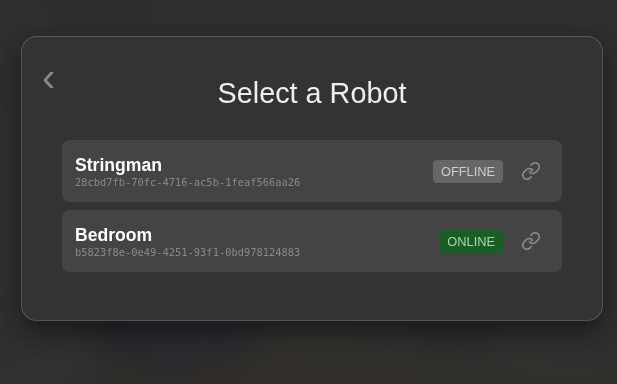
You can connect your stringman robot to your account at Neufangled.com in order to access it from anywhere as long as stringman-headless is running at home
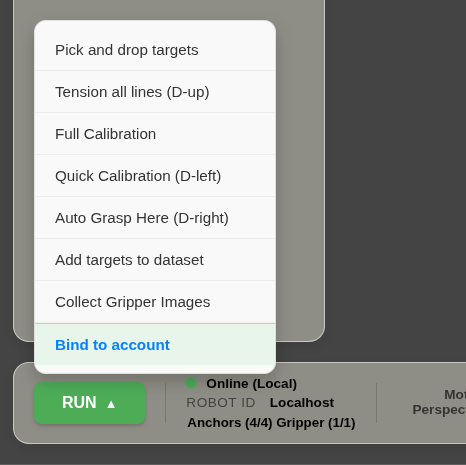
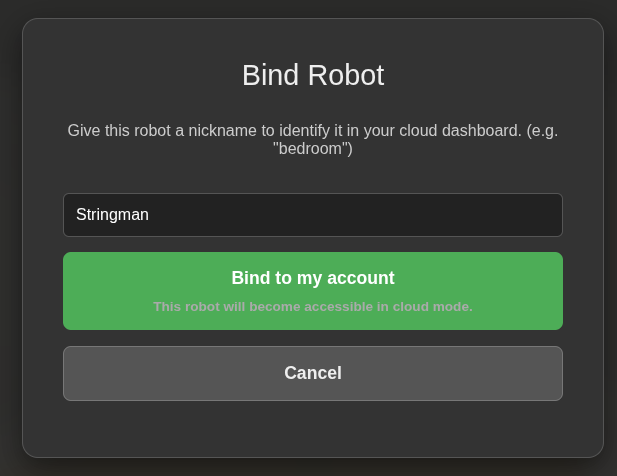
While connected in LAN mode, from the RUN menu, select Bind to Account. You will be asked to log in with Google or Github. Give the robot a nickname, and click bind.
AI Control
When the motion controller started, it downloaded the latest models for target recognition and gripper centering. Targets will be recognized more frequently if the motion controller is running on a machine with AI acceleration.
In the main menu, select Pick and drop targets. Stringman will repeatedly select a target, move over it, center it's gripper, attempt an automated grasp, and take the target to a destination. At this time, all targets are carried to the hamper. this is 20cm in front of wherever you clip the hamper tag.
At any time, you can press stop to end AI control.
Note
AI control is only decent right now for the Pilot version gripper. For Arpeggio, it is actively being developed but not very useful at the moment.